Nexcod POS Android App is Now Live! Login to your software, click Nexcod POS App, and scan the QR code.Nexcod POS Android App is Now Live! Login to your software, click Nexcod POS App, and scan the QR code.Nexcod POS Android App is Now Live! Login to your software, click Nexcod POS App, and scan the QR code.

What it looks like

The real screens, photographed off the software, not drawings of them.
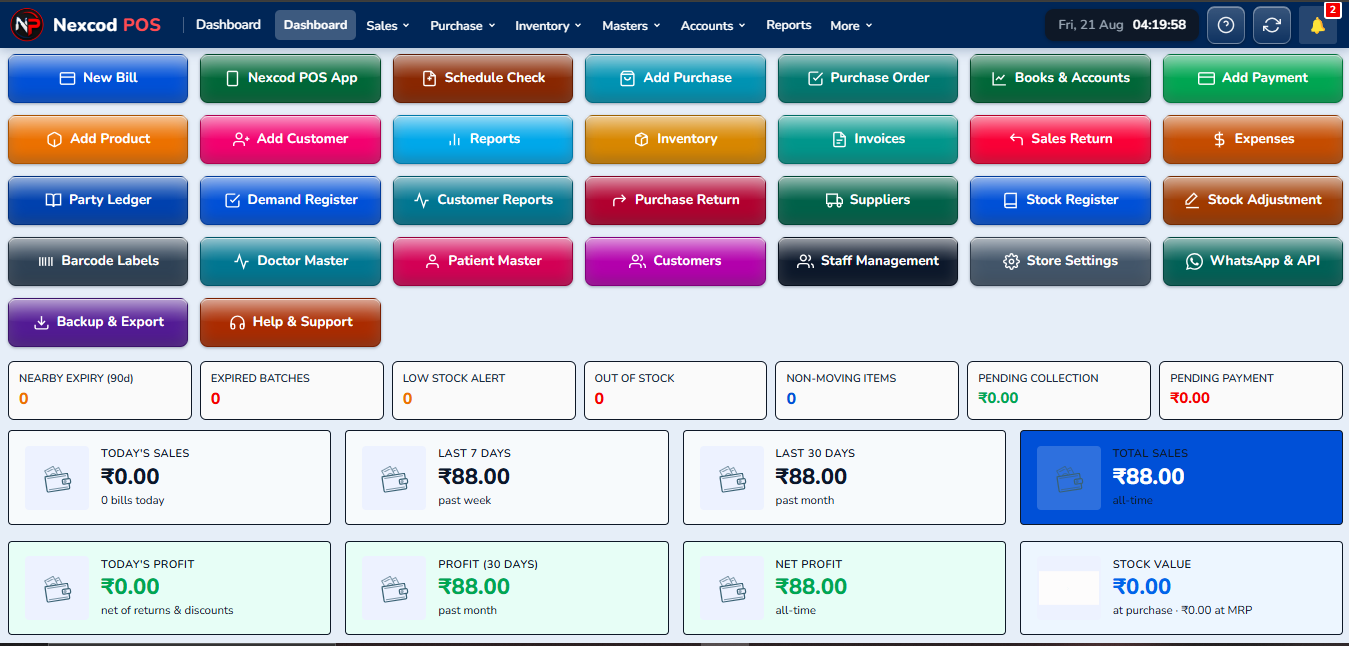
Software Dashboard
Software Dashboard The first screen after login: today's sales and profit, what customers owe, what is close to expiry, and a button for every section.
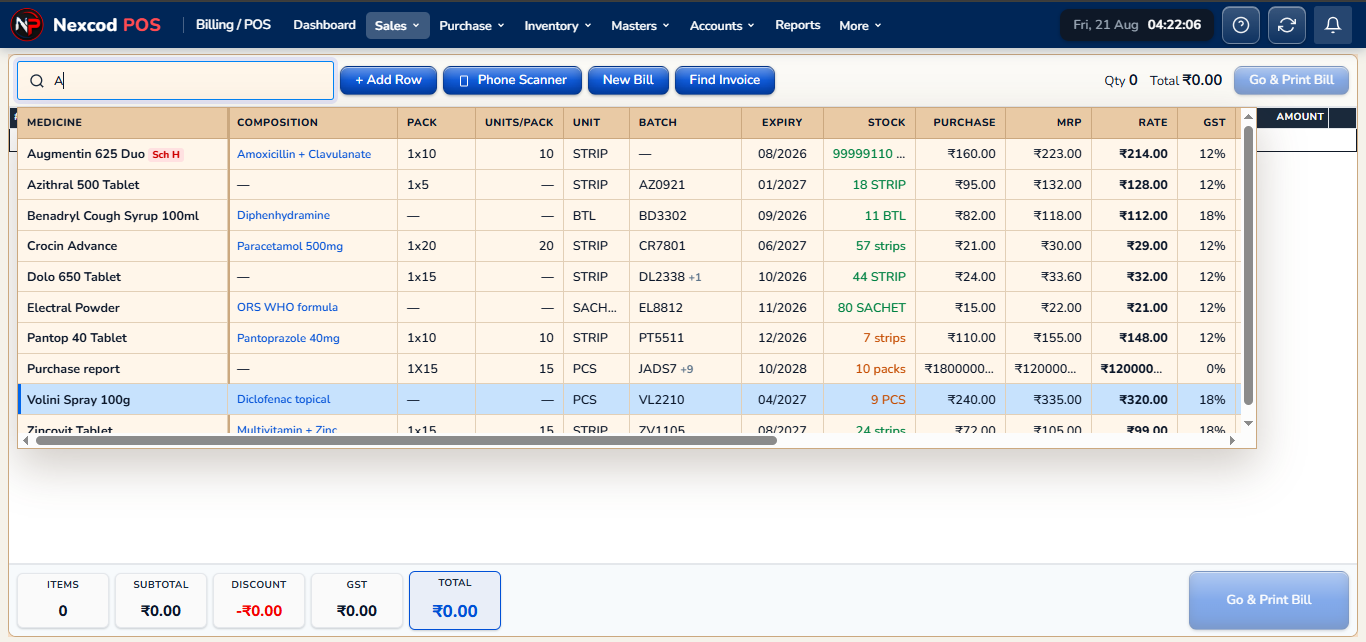
Product Search
Product Search Type two or three letters of a name, brand or salt, and the matching medicines appear with their stock, batch and MRP.
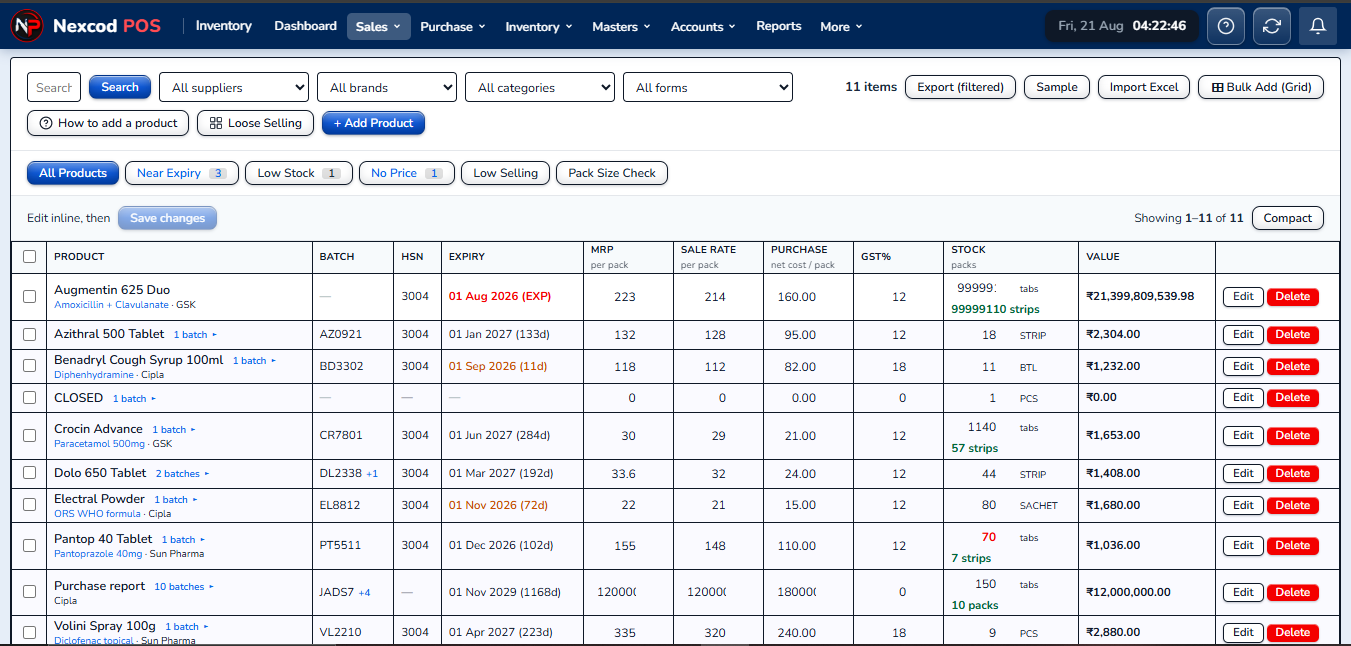
Inventory Management
Inventory Management Every medicine with its batches, stock and rates. Change a row where it stands, or bring in the whole list from Excel.
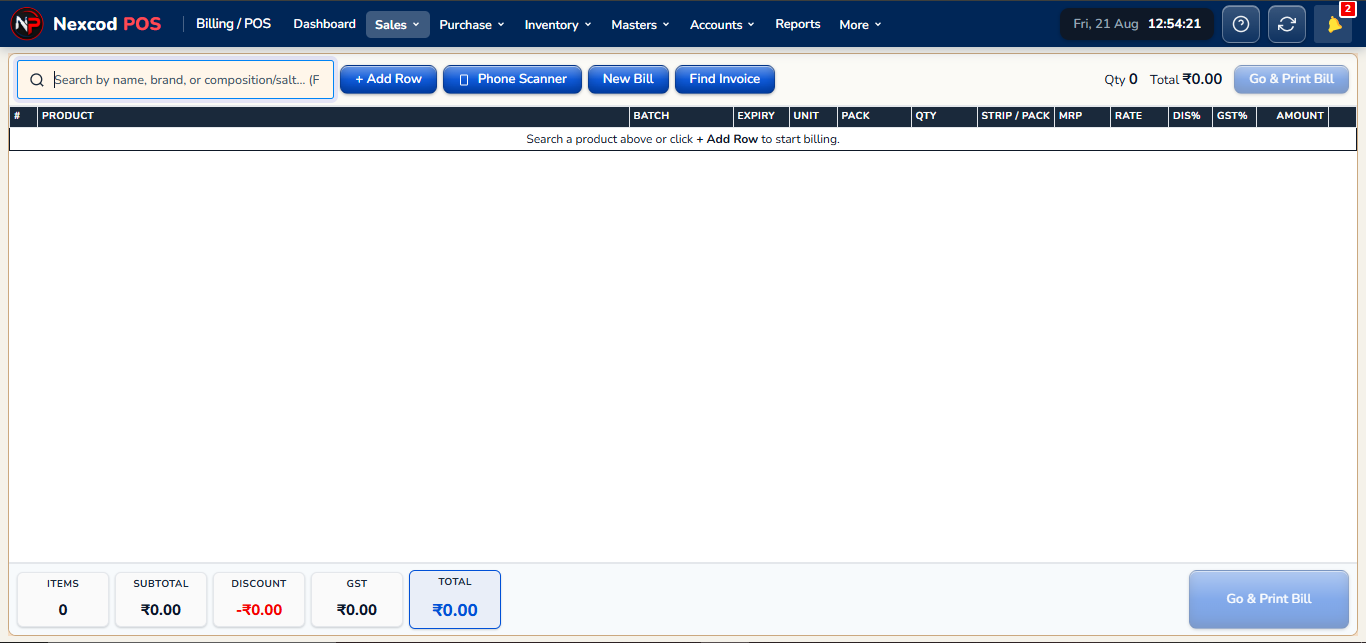
Billing Dashboard
Billing Dashboard The billing counter. Find a medicine, pick the batch, choose strips or loose tablets, then print the bill or send it.
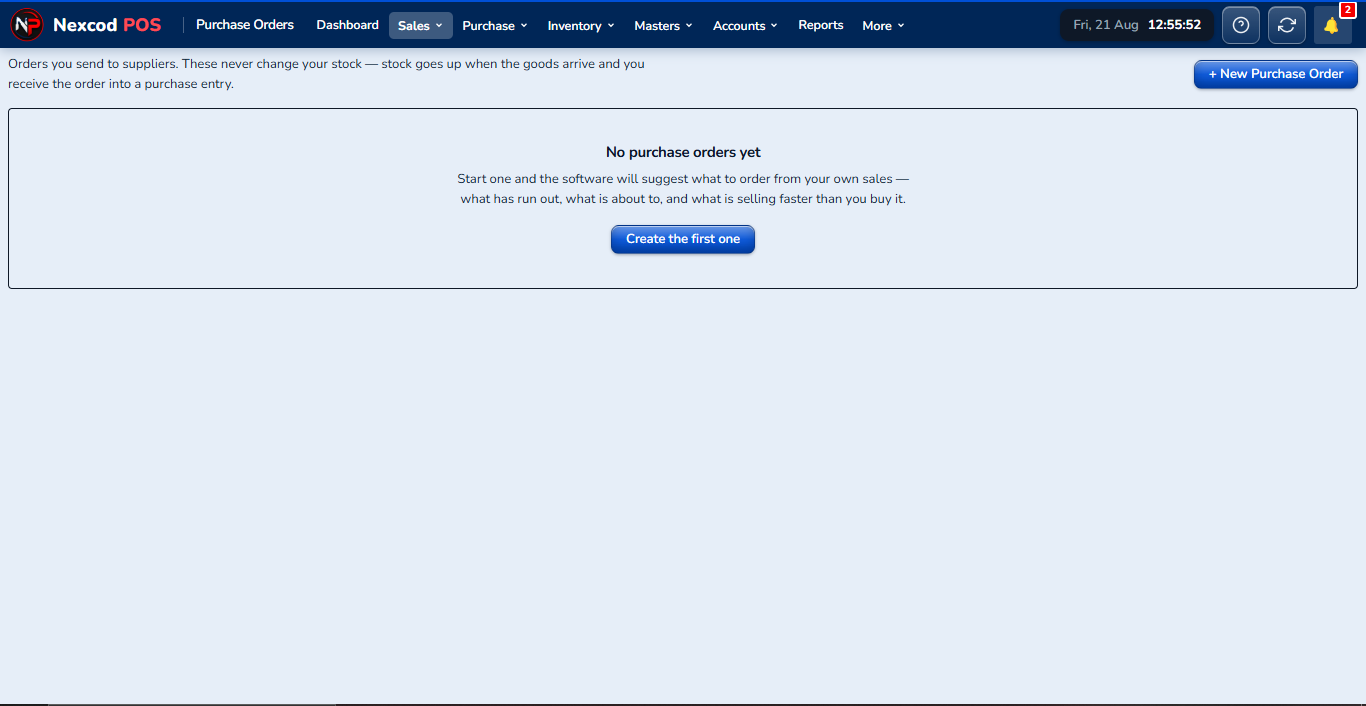
Purchase Orders
Purchase Orders A distributor's bill entered line by line, with batch, expiry, free goods and discount. Stock goes up when it is saved.
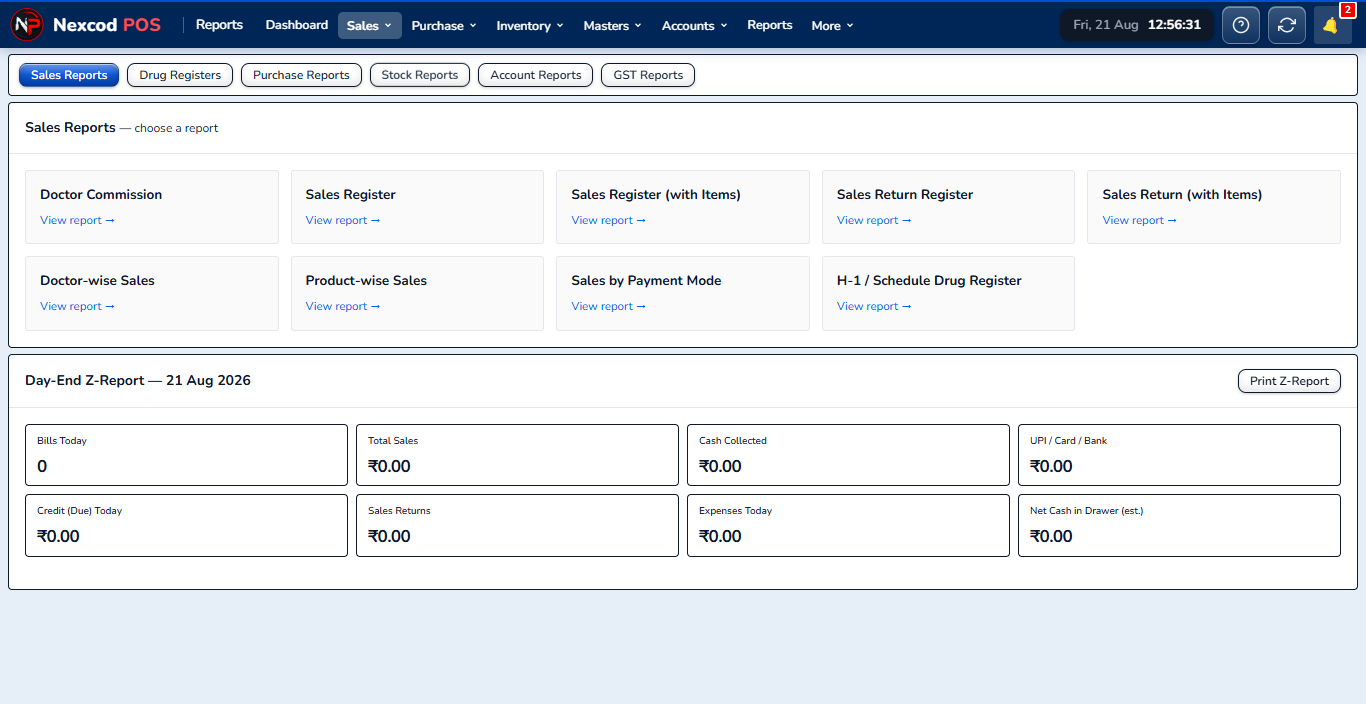
Sales Reports
Sales Reports Sales by day, by bill, by customer or by medicine, with the profit on each worked out from what that batch cost.
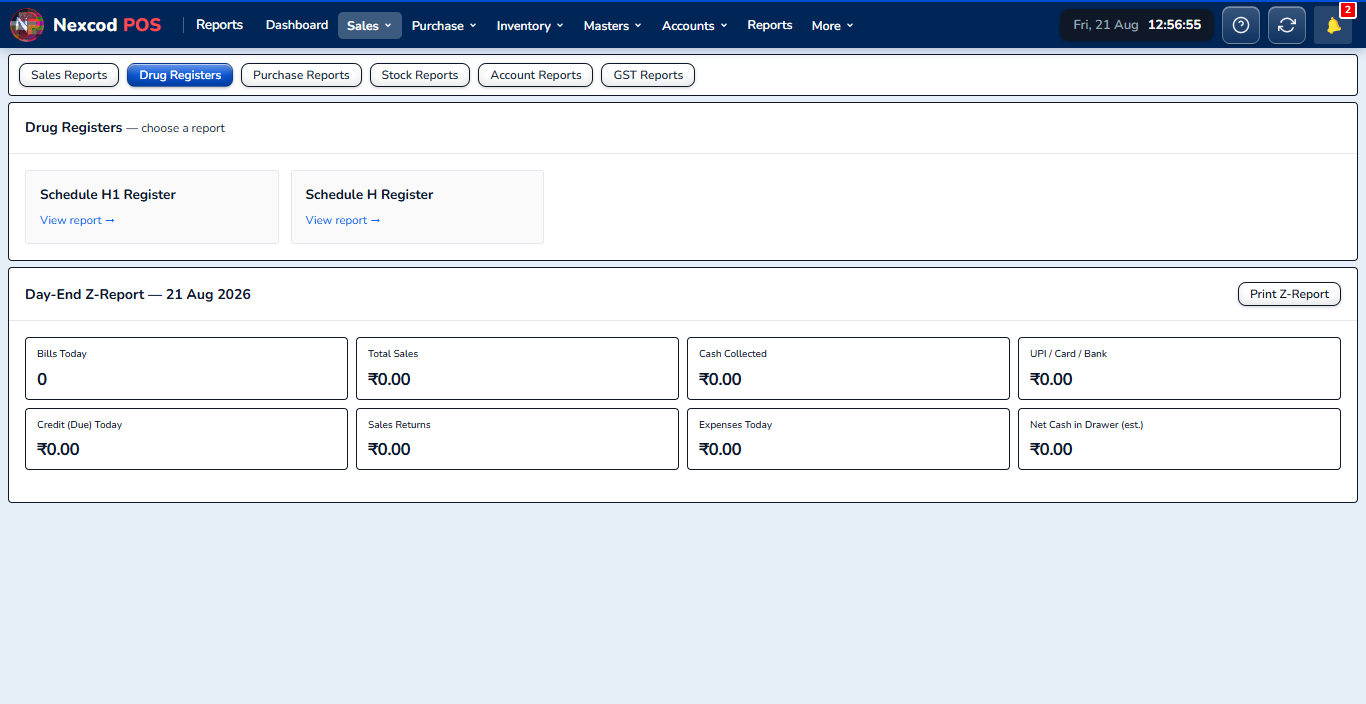
Drug Registers
Drug Registers Schedule H and H1 registers, filled in from the bills with the doctor and the patient, ready to show an inspector.
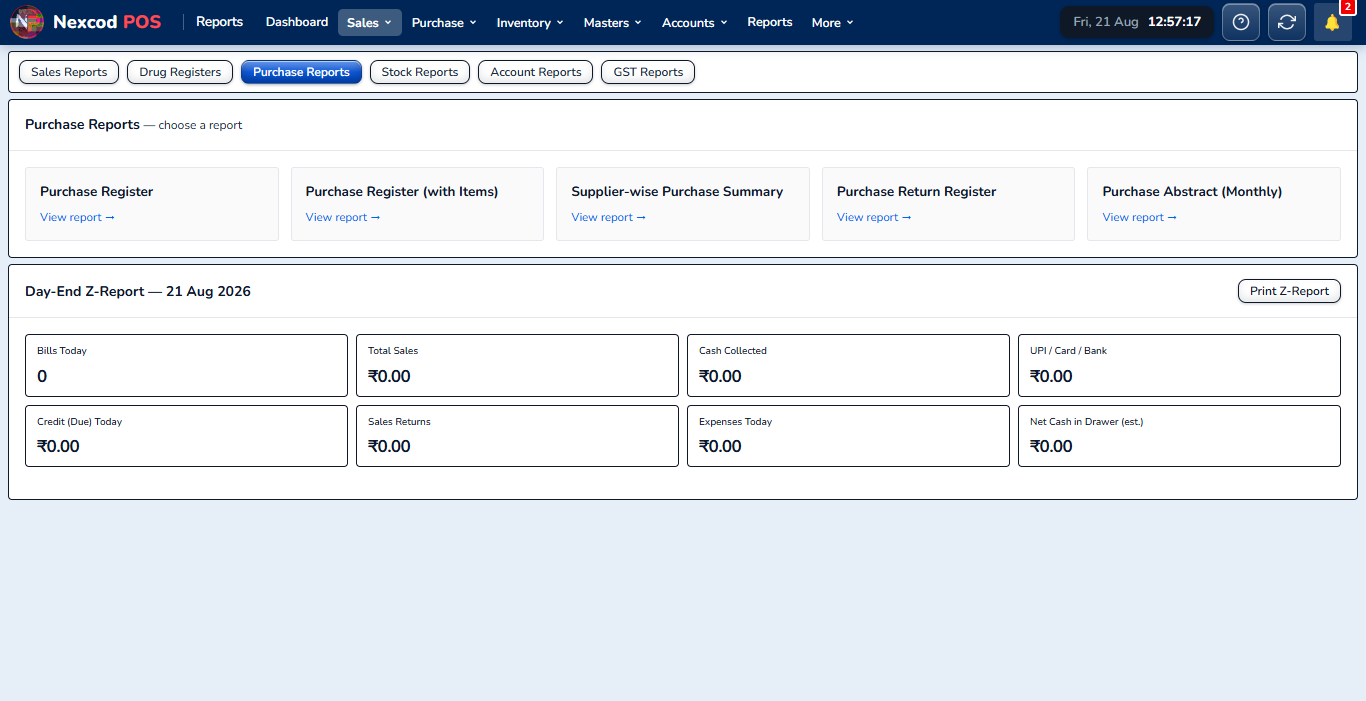
Purchase Reports
Purchase Reports The purchase register, totals for each supplier, purchase returns, and purchases month by month.
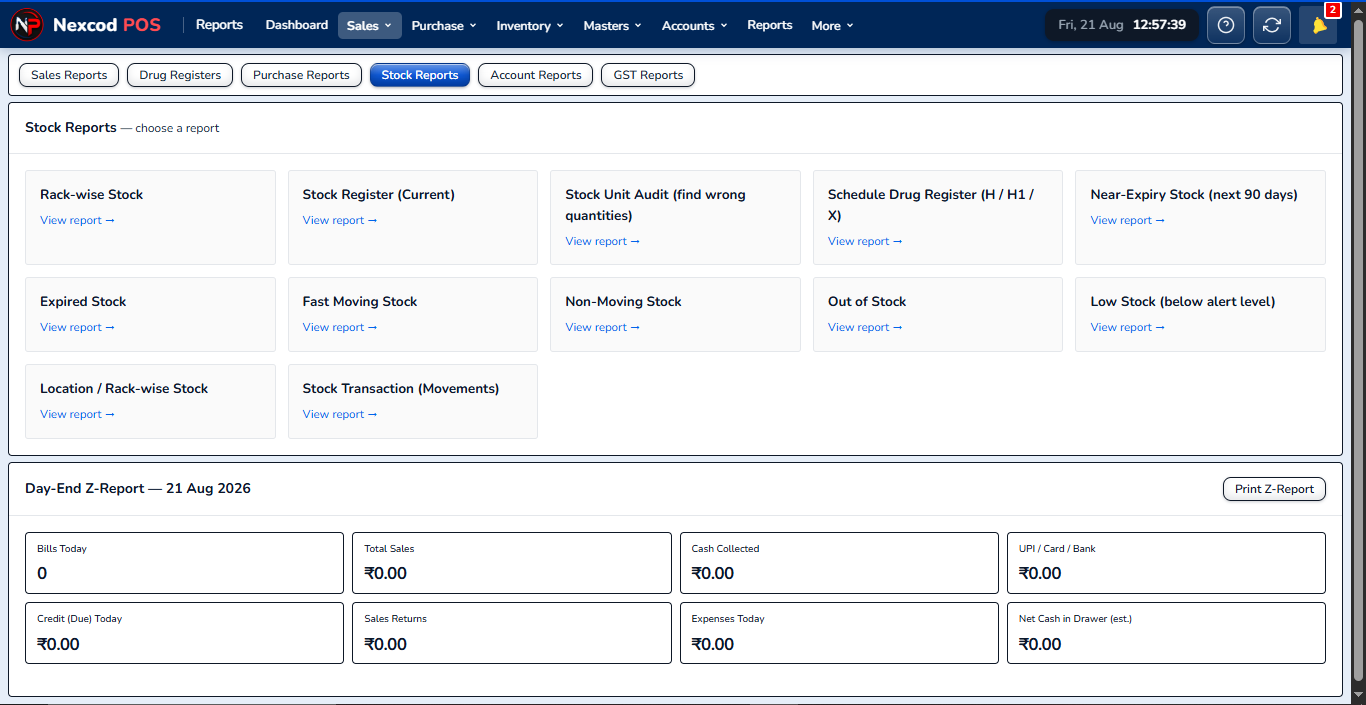
Stock Reports
Stock Reports Current stock, stock by rack, near-expiry, fast and slow sellers, low stock, and every movement of every medicine.
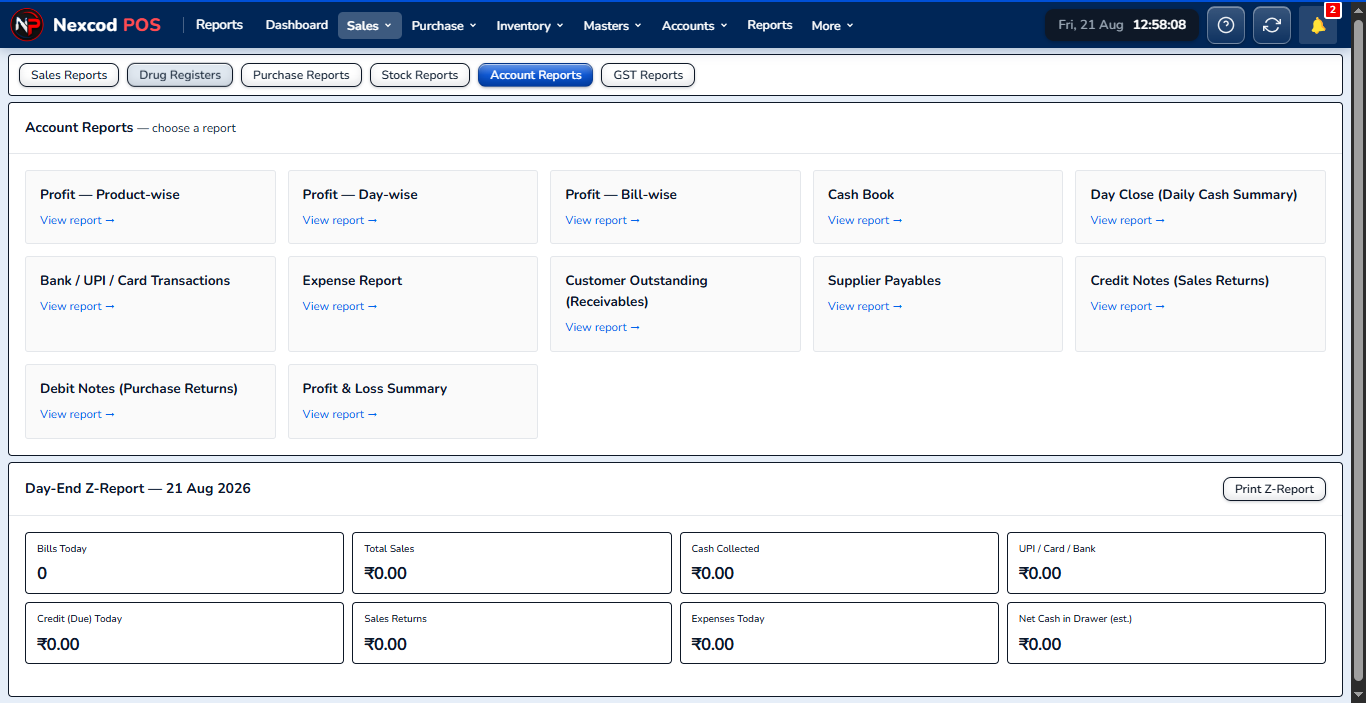
Account Reports
Account Reports Profit and loss, cash flow, expenses, what is owed to you and what you owe, and a summary for each day.
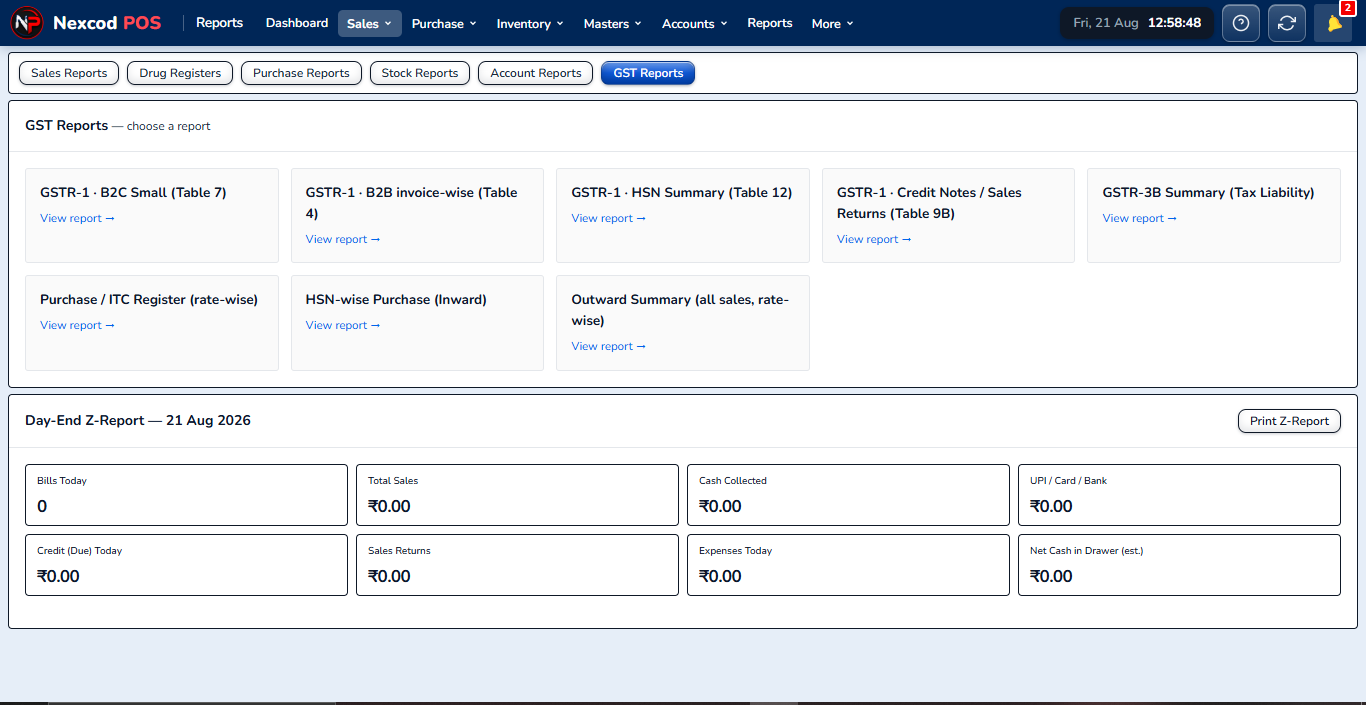
GST Reports
GST Reports GSTR-1, the HSN summary, purchase ITC, sales returns and the tax payable, for whatever period you choose.